
Section 508 of the Rehabilitation Act was amended in 1998 to require Federal agencies'electronic and information technology is accessible to people with disabilities, including employees and members of the public. Section 508 went into effect on June 21, 2001. Section 508 establishes requirements for any electronic and information technology developed, maintained, procured, or used by the Federal government.
The following guidelines are provided to assist Web developers in their efforts to conform to the Section 508 technical standard 1194.22. For each priority within the 1194.22 standard, an example and explanation are provided relating to web publishing. Each priority sites the guideline and provides an explanation and example of how to meet the priority. As with all Web design approaches there are multiple ways to create and develop effective web materials, these guidelines are one example of how to create accessible web content relative to Section 508. At Macromedia we fully support the spirit of the law in Section 508 and offer this Guideline as one means of support for the creation of accessible web content.
WORKFORCE INVESTMENT ACT OF 1998
Section 508 Electronic and Information Technology
¨þ 1194.22 Web-based intranet and internet information and applications
- (a) A text equivalent for every non-text element shall be provided (e.g., via "alt", "longdesc", or in element content).
- (b) Equivalent alternatives for any multimedia presentation shall be synchronized with the presentation.
- (c) Web pages shall be designed so that all information conveyed with color is also available without color, for example from context or markup.
- (d) Documents shall be organized so they are readable without requiring an associated style sheet.
- (e) Redundant text links shall be provided for each active region of a server-side image map.
- (f) Client-side image maps shall be provided instead of server-side image maps except where the regions cannot be defined with an available geometric shape.
- (g) Row and column headers shall be identified for data tables.
- (h) Markup shall be used to associate data cells and header cells for data tables that have two or more logical levels of row or column headers.
- (i) Frames shall be titled with text that facilitates frame identification and navigation.
- (j) Pages shall be designed to avoid causing the screen to flicker with a frequency greater than 2 Hz and lower than 55 Hz.
- (k) A text-only page, with equivalent information or functionality, shall be provided to make a web site comply with the provisions of this part, when compliance cannot be accomplished in any other way. The content of the text-only page shall be updated whenever the primary page changes.
- (l) When pages utilize scripting languages to display content, or to create interface elements, the information provided by the script shall be identified with functional text that can be read by assistive technology.
- (m) When a web page requires that an applet, plug-in or other application be present on the client system to interpret page content, the page must provide a link to a plug-in or applet that complies with ¨þ1194.21(a) through (l).
- (n) When electronic forms are designed to be completed on-line, the form shall allow people using assistive technology to access the information, field elements, and functionality required for completion and submission of the form, including all directions and cues.
- (o) A method shall be provided that permits users to skip repetitive navigation links.
- (p) When a timed response is required, the user shall be alerted and given sufficient time to indicate more time is required.

Priority 1194.22(a)
A text equivalent for every non-text element shall be provided (e.g., via "ALT", "LONGDESC", or in element content.
Explanation
When a person reads or views a web page with a text browser, screen reader, or a browser with images not loading, images are displayed and read as "IMAGE" unless some additional markup is used to describe that image. The lack of use of one of the following techniques makes it difficult for users to know what information the image is trying to convey.
The ALT attribute provides a description phrase for each image. Up to 256 characters can be used in this context, however, if more than 50 characters are required to adequately describe the image than a LONGDESC attribute is the preferred technique.
The LONGDESC attribute can be used when an image presents content that requires a more extensive description. This attribute provides a link to a separate page with the description of the content.
The D link can be placed next to an image and linked to another HTML page to provide users of graphical browsers, such as Internet Explorer and Netscape Navigator, a more extensive description of the image.
Examples
ALT Example

LONGDESC Example
DESCRIPTIVE LINK Example
<a href="description.html"><img src="/images/henrymall1.gif longdesc="henrymall1.htm" alt="University of Wisconsin - Madison's Henry Mall" ></a>
Adding ALT Text
Entering an ALT attribute to an image in Macromedia Dreamweaver MX 2004 can be done in two ways. If the accessibility preference for images has been selected a dialog box will ask for alt text when an image is inserted on a page.
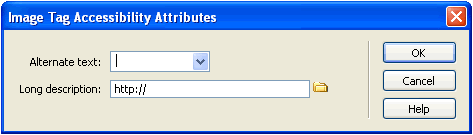
Otherwise, alt text can be added using the property inspector. To add an ALT attribute, select the image by clicking on it once. Enter a short description (up to 50 characters) of the image in the Alt box in the Properties Inspector. ALT tags should be written in such a way as to provide the user enough information to understand the purpose of the image without providing more detail than necessary.

Adding a Long Description
Adding a LONGDESC variable to an image in Macromedia Dreamweaver MX 2004 can be done in 2 ways.
Right click the image that requires a longdesc attribute. Select edit tag. Select stylesheet/accessibility. Then browse to the long description HTML page.
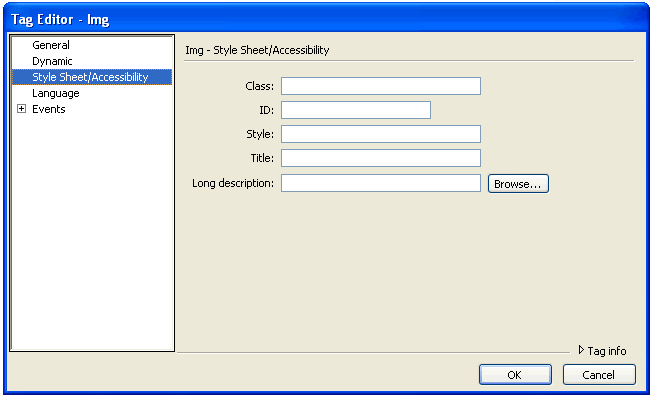
Browse to the file henrymall1.htm and the LONGDESC attribute will be added to the the image tag. The HTML markup is provided:
<img src="/images/henrymall1.gif longdesc="henrymall1.htm" alt="University of Wisconsin - Madison's Henry Mall" width="250" height="188">
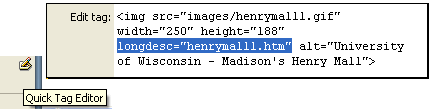
Another method for adding a long description in Dreamweaver MX 2004 can be by selecting the image then clicking on the Quick tag editor in the property inspector.
Adding Descriptive Link
To add a descriptive link, type the letter D to the right of the image. Select the letter. Enter the name of the HTML file describing the image content in the Link box inside the Property Inspector.

Priority 1194.22(b)
Equivalent alternatives for any multimedia presentation shall be synchronized with the presentation.
Explanation
In a multimedia presentation, like a movie or animation, it is important to provide people who cannot see the screen with alternatives for the visual track. These alternatives include both captions for spoken word and auditory descriptions of relevant action taking place on the screen. These alternatives should be synchronized with the action taking place on the screen.
Example
"Introduction to Screen Readers Movie" with Neal Ewers of the Trace Research Center is a short video demonstrating how screen readers assist the blind to navigate the web, access the electronic page, and more. This video serves as one example of how to caption video appropriately. Please note this video will open in a new window. It is also a 12mb file, so it will be slow to download using a modem connection. Copies of this video can be purchased from the UW Madison, DoIT
Transcription of screen reader video.
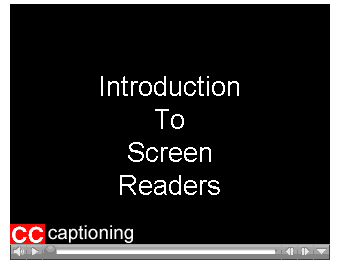
*NOTE: While watching the movie, click the "CC" icon at the bottom of the movie screen to see the closed captioning. See the screen shot below.
Priority 1194.22(c)
Web pages shall be designed so that all information conveyed with color is also available without color, for example from context or markup.
Explanation
The use of color to convey meaning creates problems when those colors cannot be displayed by a browser or seen by the user. A user may be using a computer monitor with few colors, a text-only reader, or a handheld device that renders information without color. In addition, people with color blindness may not be able to see the difference between colors used. Finally, there may be users who cannot see the screen at all. This priority specifies that information conveyed through the use of color also be represented in a secondary manner.
Example
Below are two examples of color used on a page to convey meaning. The first represents an example of what not to do. The second represents an example of how to use color properly. The HTML for each line follows the image.
Question #1 -- Which of these colors does not appear in the flag of the United States?
A) <img
src="images/red.gif" alt="button">
<img
src="images/red.gif" alt="button">
B) <img
src="images/white.gif" alt="button">
<img
src="images/white.gif" alt="button">
C) <img
src="images/blue.gif" alt="button">
<img
src="images/blue.gif" alt="button">
D) <img
src="images/yellow.gif" alt="button">
<img
src="images/yellow.gif" alt="button">
Question #2 -- Which of these colors does not appear in the flag of the United States?
A)RED
<img src="images/red.gif" alt="red
image">
B)WHITE
<img src="images/white.gif" alt="white
image">
C)BLUE <img
src="images/blue.gif" alt="blue
image">
D)YELLOW
<img src="images/yellow.gif" alt="yellow
image">
Priority 1194.22(d)
Documents shall be organized so they are readable without requiring an associated style sheet.
Explanation
HTML was never intended to be a desktop publishing language. HTML is a relational markup language that describes a hierarchy of information. To control for placement and formatting of objects on the screen, Cascading Style Sheets (CSS) were created. A style sheet defines how objects will be presented. For example, a style sheet may specify the <h1> tag be displayed using the Arial font, at 18 points (font size), be blue, with an indention of 10 pixels.
CSS is a powerful way to control and manage formatting of content on a web site. However, browsers prior to Netscape Navigator and Internet Explorer version 4.0 do not support CSS. This priority specifies that each page must be readable by all users if the style sheet is not supported, is turned off or doesn't load.
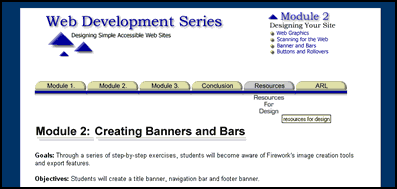
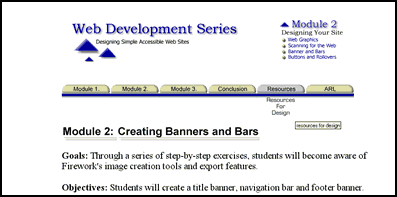
The following two images show a page with and without its style sheet. In the first example, the dark blue background is controlled in the style sheet rather than in the HTML background properties of the document. This ensures that if style sheets are turned off and the style defining the white table cell is removed, we don't have black text on a dark blue background. All presentation is controlled in the style sheet and when it is removed or fails to load, the document defaults to the browser's settings. In the second image, we see the same image with the style sheet turned off. Notice the background color is now white, with black text.
Page using CSS
Page not using CSS
To see how a site will look without style sheets, visit Delorie Web Page Backward Compatibility Viewer at http://www.delorie.com/web/wpbcv.html.
Example
Interagency Committee on Disability Research
In this example, several items are controlled using a CSS. The table cell background color, font colors, page header image, and page layout are all defined in the CSS. If a visitor came to this site with a browser that didn't support CSS, all these formatting settings would be lost and the user's browser settings would be used.
In checking this site against several non-CSS browsers, the site remains useable.The page is displayed as text only with the page title and content displayed first, then the page links below.
The following link to the style sheet source opens in a new window.
Priority 1194.22(e)
Redundant text links shall be provided for each active region of a server-side image map
Explanation
If a page relies on server-side image maps (where the web server controls the interactivity of the hotspot regions of the image map), there are situations when a user's browser will not be able to communicate appropriately to get the needed links. Repeating the link in text on the page will allow users to gain access to the links embedded in the image map. While this is not required of client-side image maps, it is still a useful technique.
Example
Below, notice an example in two parts. First, there is an image map linking to several pages at the University of Wisconsin - Madison. Next, there is a matching set of text links to these same pages.
Note: most links in this example are not active

[nmc] [bnmc] [events] [hours & location] [hardware & software] [doit] [ltde] [pte] [UW-Madison] [consulting] [training] [facilities] [policies] [contact us]
Priority 1194.22(f)
Client-side image maps shall be provided instead of server-side image maps except where the regions cannot be defined with an available geometric shapes
Explanation
Client-side image map tools are limited in the ability to define "hot spots" (areas where a user can click on an image and trigger an event of some kind, like going to a URL). In most cases, however, client-side image map tools, like those found in applications like Macromedia Dreamweaver MX 2004, can be used to create an accessible image map. Given the fact that some web browsers do not support server-side image maps, this priority suggests that web developers create client-side image maps.
Example
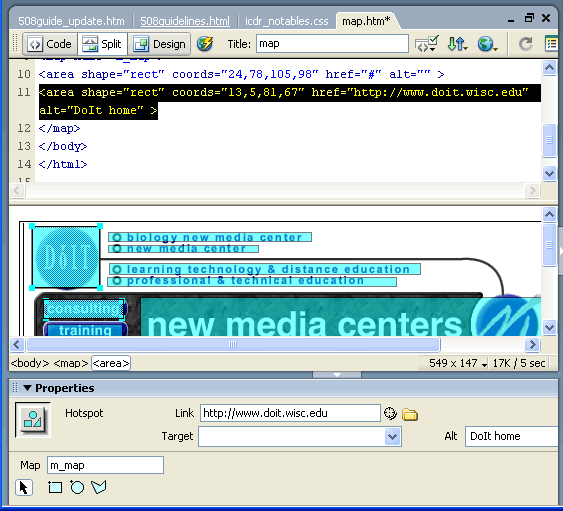
When creating image maps, it is important to define the text equivalents for each hotspot. In Dreamweaver MX 2004, the ALT attribute for each region on an image map is defined in the Alt box on the Properties Inspector..
Priority 1194.22(g)
Row and column headers shall be identified for data tables
Explanation
Using tables is an excellent way to represent tabular data. Problems are created, however, in the way some browsers read tables. Using row and column headers can help define the relationship of content within a table. In Macromedia Dreamweaver MX 2004, headers within a table can be specified.
Example
In the example below, the information presented in the bottom two rows is obviously organized by the top row. If the user is able to see the table, he or she will know that Tim Dugdale has attended 10 classes. If not, it may be more difficult to understand this data. Using the scope attribute, the data may be marked up in a way that clearly associates each cell with the appropriate header. Notice the HTML code below.
| Name | Classes Attended | Platform Type | Registered |
|---|---|---|---|
| Tim Dugdale | 10 | Macintosh | No |
| Blaire Bundy | 5 | PC | Yes |
HTML Source
<table border="1">
<tr>
<th scope="col">Name</th>
<th scope="col">Classes Attended</th>
<th scope="col">Platform Type</th>
<th scope="col">Registered</th>
</tr>
<tr>
<td>Tim Dugdale</td>
<td>10</td>
<td>Macintosh</td>
<td>No</td>
</tr>
<tr>
<td>Blaire Bundy</td>
<td>5</td>
<td>PC</td>
<td>Yes</td>
</tr>
</table>
Priority 1194.22(h)
Markup shall be used to associate data cells and header cells for data tables that have two or more logical levels of row or column headers.
Explanation
Complex table structures may be difficult to understand when read by assistive technologies. By marking a table with the appropriate tags, browsers will be able to explain and represent a context of the data found within the table. Users will need to enter this information directly into the HTML code.
Example
In the example below, a screen reader may read the second row of the table as:
San Jose 25-Aug-97 26-Aug-97 37.74 112.00 45.00 27.28 112.00 45.00
By marking it correctly, a screen reader will know the relationship of each number to the corresponding headers. So, 37.74 will be described as relating to 25-Aug-97, San Jose, and Meals.
| Meals | Hotels | Transport | Subtotals | |
|---|---|---|---|---|
| San Jose | ||||
| 25-Aug-97 | 37.74 | 112.00 | 45.00 | |
| 26-Aug-97 | 27.28 | 112.00 | 45.00 | |
| subtotal | 65.02 | 224.00 | 90.00 | 379.02 |
| Seattle | ||||
| 27-Aug-97 | 96.25 | 109.00 | 36.00 | |
| 28-Aug-97 | 35.00 | 109.00 | 36.00 | |
| subtotals | 131.25 | 218 | 72.00 | 421.25 |
| Totals | 196.27 | 442.00 | 162.00 | 800.27 |
HTML Source
<table border="1">
<caption>Travel Expense Report</caption>
<tr>
<th id="Meals" axis="expenses">Meals</th>
<th id="Hotels" axis="expenses">Hotels</th>
<th id="Transport" axis="expenses">Transport</th>
<th id="Subtotals" axis="expenses">Subtotals</th>
</tr>
<tr>
<th id="SanJose" axis="location">San Jose</th>
<td></td>
<td></td>
<td></td>
<td></td>
</tr>
<tr>
<th id="25-Aug-97" axis="date">25-Aug-97</th>
<td headers="SanJose 25-Aug-97 Meals">37.74</td>
<td headers="SanJose 25-Aug-97 Hotels">112.00</td>
<td headers="SanJose 25-Aug-97 Transport">45.00</td>
<td></td>
</tr>
<tr>
<th id="26-Aug_97" axis="date">26-Aug-97</th>
<td headers="SanJose 26-Aug_97 Meals">27.28</td>
<td headers="SanJose 26-Aug_97 Hotels">112.00</td>
<td headers="SanJose 26-Aug_97 Transport">45.00</td>
<td></td>
</tr>
<tr>
<td>subtotals </td>
<td headers="Meals SanJose">65.02</td>
<td headers="Hotels SanJose">224.00</td>
<td headers="Transport SanJose">90.00</td>
<td headers="Subtotals SanJose">379.02</td>
</tr>
<tr>
<th id="Seattle" axis="location">Seattle</th>
<td></td>
<td></td>
<td></td>
<td></td>
</tr>
<tr>
<th id="26-Aug-97" axis="date">27-Aug-97</th>
<td headers="Seattle 26-Aug-97 Meals">96.25</td>
<td headers="Seattle 26-Aug-97 Hotels">109.00</td>
<td headers="Seattle 26-Aug-97 Transport">36.00</td>
<td></td>
</tr>
<tr>
<td>
<th id="28-Aug-97" axis="date">28-Aug-97</th>
<td headers="Seattle 28-Aug-97 Meals">35.00</td>
<td headers="Seattle 28-Aug-97 Hotels">109.00</td>
<td headers="Seattle 28-Aug-97 Transport">36.00</td>
<td></td>
</tr>
<tr>
<td>subtotals</td>
<td headers="Seattle Meals">131.25</td>
<td headers="Seattle Hotels">218.00</td>
<td headers="Seattle Transport">72.00</td>
<td headers="Seattle Subtotals">421.25</td>
</tr>
<tr>
<th id="Totals" axis="totals">Totals</th>
<td headers="Meals Totals">196.27</td>
<td headers="Hotels Totals">442.00</td>
<td headers="Transport Totals">162.00</td>
<td headers="Totals">800.27</td>
</tr>
</table>
Priority 1194.22(i)
Frames shall be titled with text that facilitates frame identification and navigation
Explanation
The use of frames can cause numerous problems if designed incorrectly. Frames are made up of two parts -- a frameset and individual frames. Each frame is a separate HTML file, which is held together by the frameset. When frame-based web sites are accessed in a text-only browser, the user is given a list of frames. If the frames are not properly titled, the user doesn't know how the site is organized. Thus it is very important that each frame be titled according to its purpose. It is also helpful to provide navigation within each frame to the other frames.
Example
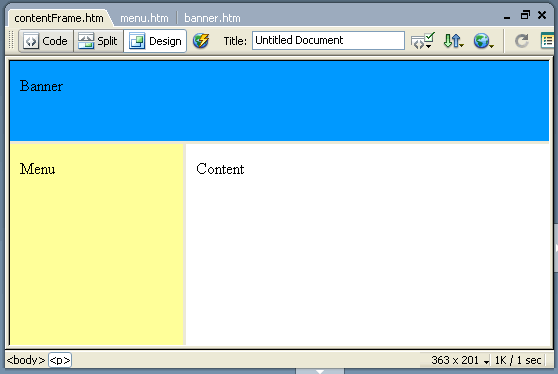
In the example below, there are three frames: banner, menu and content. Each title reflects the content of the frame.
Priority 1194.22(j)
Pages shall be designed to avoid causing the screen to flicker with a frequency greater than 2 Hz and lower than 55 Hz.
Explanation
It is possible, through the use of scripts, to control the monitor refresh rate of the user's screen. This technique is used, often times, for dramatic effect, when a user enters a web site. Unfortunately, people with photosensitive epilepsy can have seizures triggered by flickering or flashing. If you must implement this technique, provide warning for users that screen flickering will be encountered. You may wish to provide a non-flicker alternative or a button to control and/or stop the effect.
Example
Below is an example of an appropriate warning used with a link to a page that cause the screen to flicker. Note that the text is not actually an active link, but merely an example.
Web site link (WARNING: Web site begins with a screen flicker script. Skip script.)
Priority 1194.22(k)
A text-only page, with equivalent information or functionality, shall be provided to make a web site comply with the provisions of this part, when compliance cannot be accomplished in any other way. The content of the text-only pages shall be updated whenever the primary page changes.
Explanation
There may be times when you are not able to comply fully with accessibility guidelines. In these cases, it is acceptable to link to a "text-only" or simplified page to provide access. It is important, however, that these pages remain updated and that they provide equal access to information.
Example
Creating a text only link is very straight forward. A text link is often placed at the top of the page with a hyper-link to a separate, text-only version of the same page.
<a href="text.html">Text-only version </a>
Priority 1194.22(l)
When pages utilize scripting languages to display content, or to create interface elements, the information provided by the script shall be identified with functional text that can be read by assistive technology.
Explanation
Many web pages use scripts of some sort, whether it be to program buttons, or present dynamic data like date and time. Several browsers, including assistive technologies, do not consistently support these scripts. To address this issue, make sure that any scripts or applets do not provide essential information that would render the site unusable if the script or applet did not run OR if the content contained in the script were not "read" by assistive technologies.
Some web pages use scripts to write dynamic content via the "document.write()" method. An example of this would be when a script is detecting the type of browser being used to view a web page. Based on the detected browser-type, the script would dynamically add some text that might provide a link to a more current version of the browser, or redirect the user to a page specifically built for their browser type. To a screen reader that doesn't support scripting, this page might become unusable. A better approach, if available, would be to have the dynamic content authored via server-side scripting. With this approach, the content is delivered to the client browser as static HTML, and no scripting is required on the user's end.
Similarly, button rollovers are nice and add an interactive feel to the site, but if they did not work, would the site remain useful? For instance, a button rollover presents addition menus, which are not replicated elsewhere on the page, would be a problem. If an onMouseover element does not contain any important information, then there is no consequence for accessibility. If this scripted event reveals important information, then a keyboard-accessible alternative is required.
Example
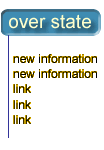
This example works fine, because no significant "new" information is presented by the rollover. There is only a color change.


This second example does not work because new information or links are presented that are not "readable" by some browsers and assistive technologies. This information needs to be presented in a way that can be used by assistive technologies. The easiest way is to replicate using a text equivalent.
Priority 1194.22(m)
When a web page requires that an applet, plug-in or other application be present on the client system to interpret page content, the page must provide a link to a plug-in or applet that complies with ¨þ1194.21(a) through (l).
Explanation
If applets or other elements that require plug-ins are used on a website, make sure that the required plugin is: (1) directly available i.e., a link is provided to an accessible page where the plug-in can be downloaded, and (2) the plug-in is compliant with assistive technologies. If not, provide alternative means of accessing equivalent content.
There is an important point here to make with respect to the use of Portable Document Format (PDF) files. Use of PDFs requires a link to the download page for Acrobat Reader. It also requires that the PDF itself be compliant with assistive technologies. Substantial improvements have been made to latest version of Acrobat with respect to accessibilty. For further information on creating accessible PDFs, see Adobe's accessibility page at http://access.adobe.com/.
Example
Below is an example of a link to a QuickTime file. Notice that just above, there is a link to the QuickTime download page.
The following content requires QuickTime.
Download QuickTime (http://www.apple.com/quicktime/download/standalone/)
Introduction to the Screen Reader (http://www.doit.wisc.edu/accessibility/video/intro_scrn_rdrs.mov)
*Note, captioning has been added to this video. Captioning can be turned on or off by the user.
Priority 1194.22(n)
When electronic forms are designed to be completed on-line, the form shall allow people using assistive technology to access the information, field elements, and functionality required for completion and submission of the form, including all directions and cues.
Explanation
Forms can be quite difficult to navigate with assistive technologies if they are not laid out in a predictable and consistent manner. All form controls should have text labels adjacent to them. Furthermore, form elements should also have labels associated with them in the markup.
Example
The following content could be a helpful link to provide for screen reader users who must fill out this form.
Help and suggestions for using this form.
This form is designed to be used by persons using assistive technologies. There are three input fields labeled: (1) first name (2) email address (3) submit
HTML Source
<form method="post" action="">
<p><a href="help.htm">Help using this form</a></p>
<p>(1) Your <label for="firstname">first name:</label>
<input type="text" id="firstname" tabindex="1" name="text1">
</p>
<p>(2) <label for="email address">Your email address: </label>
<input type="text" id="email address" tabindex="2" name="text2">
</p>
<p> (3)
<input type="submit" name="Submit" value="Submit" tabindex="3" alt="submit">
</p>
</form>
Priority 1194.22(o)
A method shall be provided that permits users to skip repetitive navigation links.
Explanation
Many websites use top or side navigation to lead people to important parts of their web site. These links usually appear on many or all pages in the site. People who use assistive technologies such as screen readers will need to read through all of these links each time they go to a page.
By placing either an invisible image or a text link which skips the navigation, you will allow users with screen reading technologies to skip directly to the content.
Example
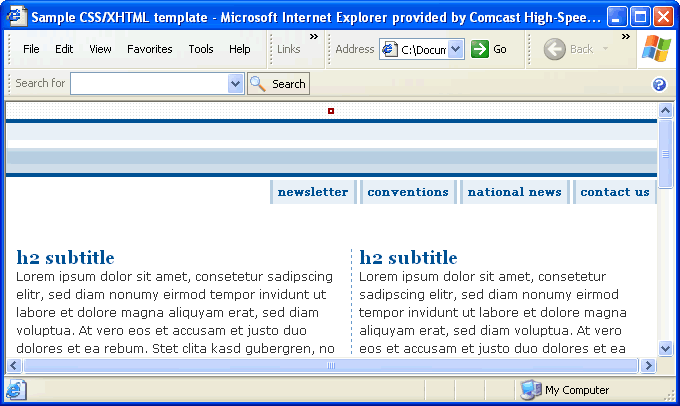
In the example below, a small, transparent image was added (red border in the example used to highlight image) to the beginning of the page. Its alt text reads, 'skip navigation' and it is linked to an internal anchor placed where the unique content of the page begins.
Here is the HTML source code:
<p><a href="#content"><img src="images/skip.gif" width="2" height="2" alt="skip navigation" border="0"></a></p>
Priority 1194.22(p)
When a timed response is required, the user shall be alerted and given sufficient time to indicate more time is required.
Explanation
People with cognitive disabilities will need to be made aware that a response is timed to prepare themselves.
Example
It is important that a quiz have a reset button that allows a user to add more time if necessary.